Sometimes when I use Claude to research a topic, I end up with an artifact created, which I want to add to my Obsidian vault, so I can go back to it later.
At some point, I got annoyed by the number of steps I had to execute to save the artifact:
- Create a new note in Obsidian
- Copy the artifact’s content
- Paste it
- Cut h1 header, and paste it as the title
- Add a property with a link to the Claude chat
But I’ve found that I can make it quicker with… Obsidian Web Clipper!
TLDR
Install Obsidian Web Clipper, import the template below, and start using it!
{
  "schemaVersion": "0.1.0",
  "name": "Claude - KBe",
  "behavior": "overwrite",
  "noteContentFormat": "{{selectorHtml:div#markdown-artifact|markdown}}",
  "properties": [
    {
      "name": "llm",
      "value": "true",
      "type": "text"
    },
    {
      "name": "llmChat",
      "value": "{{url}}",
      "type": "text"
    }
  ],
  "triggers": [
    "https://claude.ai"
  ],
  "noteNameFormat": "{{selector:div#markdown-artifact h1}}",
  "path": "Clippings"
}
Obsidian Web Clipper
Obsidian Web Clipper is an open-source browser plugin developed by Obsidian’s creators, which allows you to capture information from pages (alongside their metadata), and save them into your notes.
Personally, I mainly use it for highlighting important parts of the articles that I read online, so I can then easily export them to Obsidian as a note in a desired format: template.
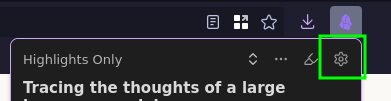
The templates can be defined in the extension’s settings, which you can access by clicking the Obsidian Web Clipper’s icon, and then the gear button, like here:
The template describes how the content of the page and its metadata should be transformed into a note. It gives you the options to configure how the title should be defined, what properties you want to add, and more. You can even use a result returned by an LLM somewhere in the template definition (check the interpreter feature).
Here’s how an example template looks:
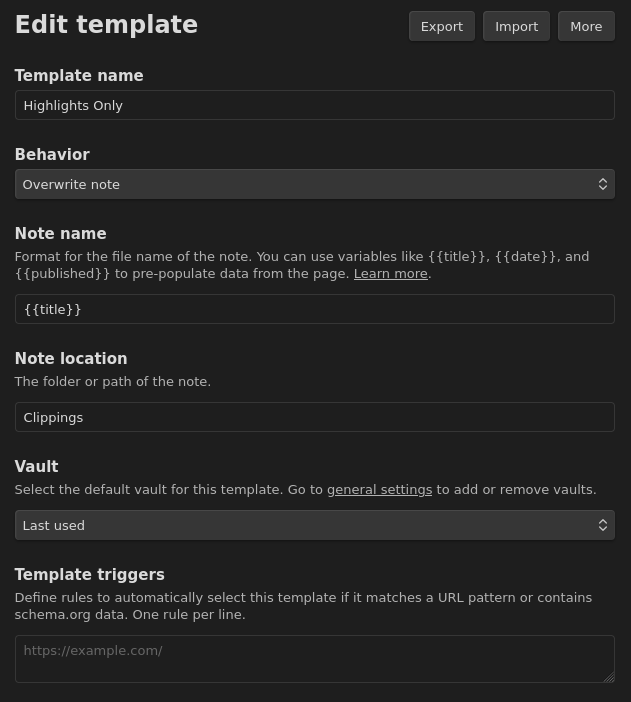
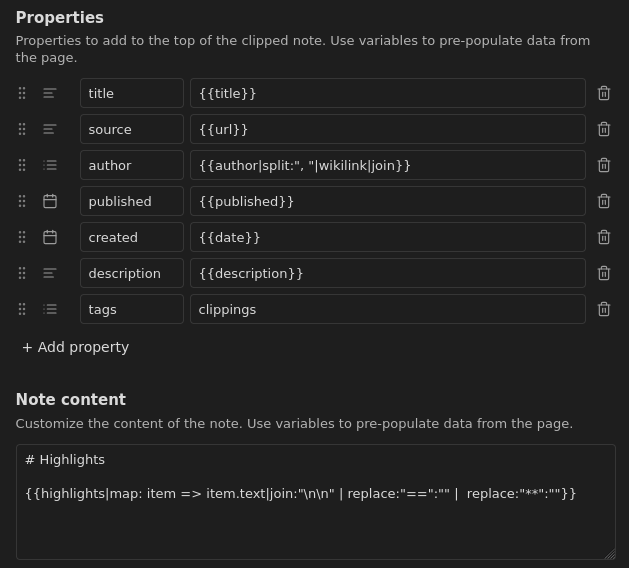
Each template can be exported and imported in the form of a JSON file. Here’s the shortened JSON description of the template from above:
{
  "schemaVersion": "0.1.0",
  "name": "Highlights Only",
  "behavior": "overwrite",
  "noteContentFormat": "# Highlights\n\n{{highlights|map: item => item.text|join:\"\\n\\n\" | replace:\"==\":\"\" |  replace:\"**\":\"\"}}\n",
  "properties": [
    {
      "name": "title",
      "value": "{{title}}",
      "type": "text"
    },
    {
      "name": "source",
      "value": "{{url}}",
      "type": "text"
    },
    // ...
    {
      "name": "tags",
      "value": "clippings",
      "type": "multitext"
    }
  ],
  "triggers": [],
  "noteNameFormat": "{{title}}",
  "path": "Clippings",
  "context": "{{highlights|map: item => item.text|join:\"\\n\\n\"}}"
}
Template for Claude’s Artifacts
In this section I would like to present how I created the template for capturing Claude’s artifacts, so you can follow along, and maybe prepare your own templates later.
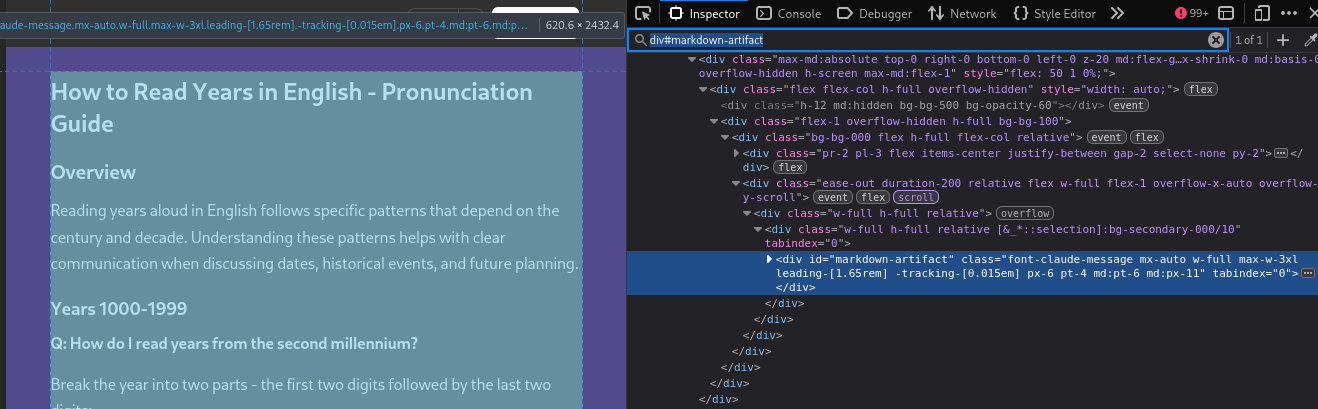
Before creating the template, I wanted to check how complicated it would be to find the right CSS selector to identify which part of the HTML contains the artifact content.
Using Firefox’s Inspector tool, I quickly found that the selector I needed is div#markdown-artifact, which matches a div element with id equal to markdown-artifact:
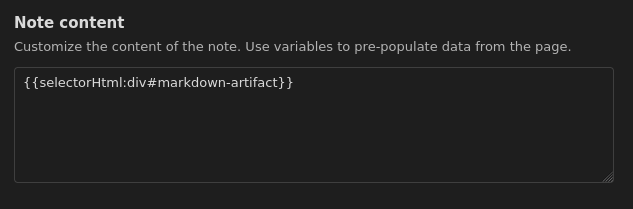
Knowing this, an artifact can be extracted with the following expression (placed as the note content in the template definition):
{{selectorHtml:div#markdown-artifact}}
If we use the template now, we will get the following result:
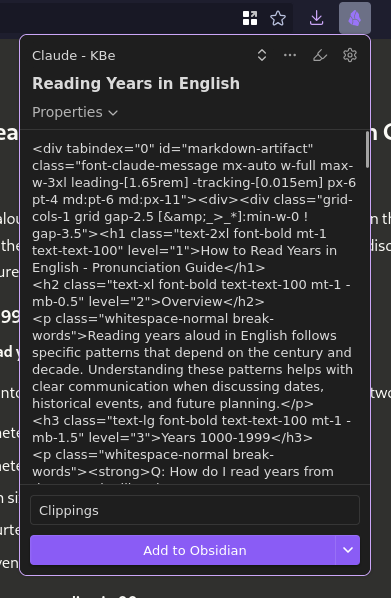
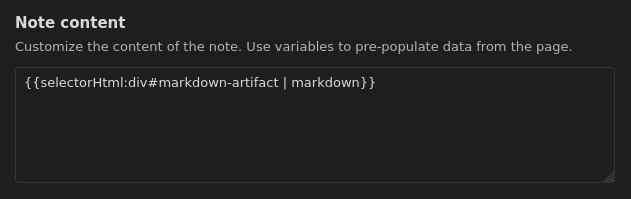
To get the output formatted as proper markdown, the HTML result can be processed with the markdown filter:
{{selectorHtml:div#markdown-artifact | markdown}}
As a result, the note content now looks like this:
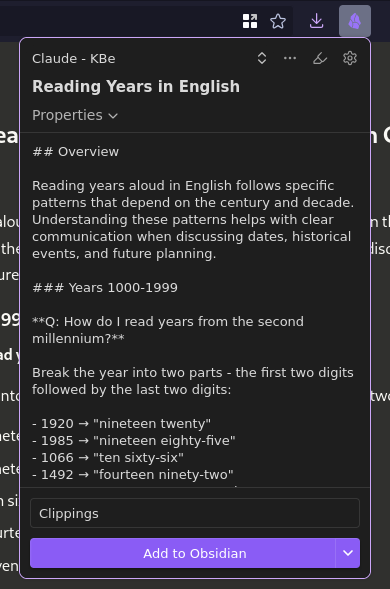
To extract the title of the artifact, we can use another selector: div#markdown-artifact h1, which extends the previous selector by targeting an h1 element within the div.
To set the note name using our selector, replace the default {{title}} with this expression:
{{selector:div#markdown-artifact h1}}
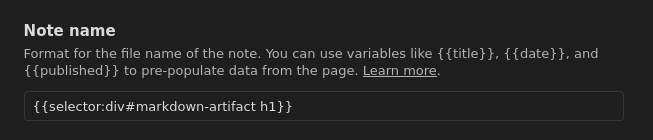
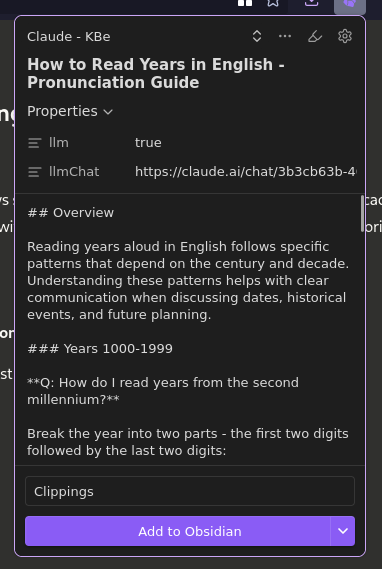
You can see that now the note name shown by the extension matches the artifact’s title:

I also wanted to store metadata showing that the note was generated by an LLM, along with a link to the original chat. So I added these properties:
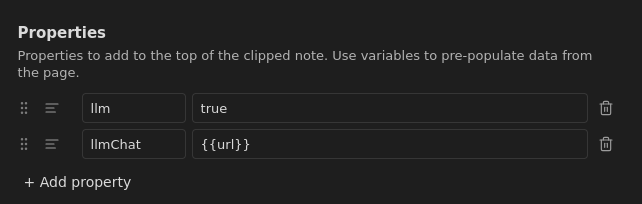
The value of llmChat is going to be dynamically set to the current URL with {{url}} variable:
Additionally, I decided to change the behavior of clicking “Add to Obsidian” to the overwrite note option:

With that option, the existing note in the Obsidian vault will be updated (instead of making another one).
Next, I added https://claude.ai as a trigger:
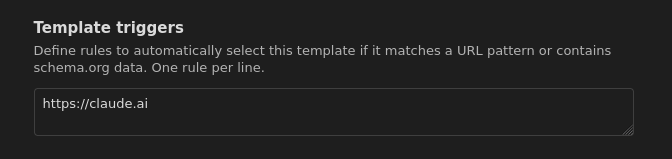
This tells the extension to use this template by default on https://claude.ai.
Finally, I set the note location to Clippings - That’s a directory in the Obsidian vault where the note is going to be saved.

Final Template and Import
The result is the following JSON template:
{
  "schemaVersion": "0.1.0",
  "name": "Claude - KBe",
  "behavior": "overwrite",
  "noteContentFormat": "{{selectorHtml:div#markdown-artifact | markdown}}",
  "properties": [
    {
      "name": "llm",
      "value": "true",
      "type": "text"
    },
    {
      "name": "llmChat",
      "value": "{{url}}",
      "type": "text"
    }
  ],
  "triggers": [
    "https://claude.ai"
  ],
  "noteNameFormat": "{{selector:div#markdown-artifact h1}}",
  "path": "Clippings"
}
You can easily import it by pasting the JSON using the Import button in the settings:
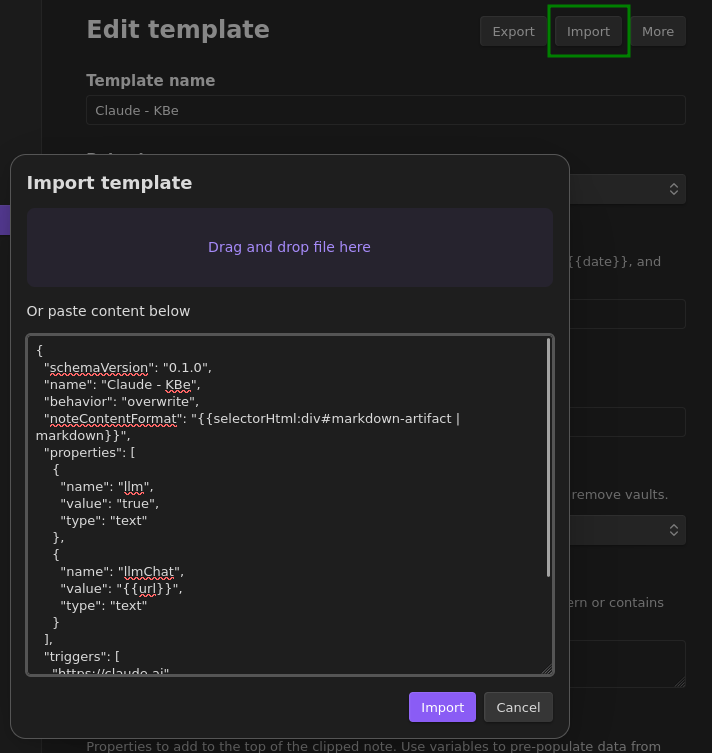
Then you can adjust it to your needs, or just leave it like I prepared it.
Summary
Obsidian Web Clipper may come in handy while consuming different kinds of text-based content online. As described with this post, it’s possible to use it to extract an artifact produced by Claude with a proper CSS selector and some filtering.